Generate a funscript from any video.
Local AI reads the motion in the scene and writes the strokes, then drives your device in time with the video — deep where the scene is deep, shallow where it isn't. The analysis runs on your own PC, so the video is never uploaded, on an NVIDIA graphics card or, much more slowly, on the CPU. It plays on the Autoblow AI Ultra over its cloud, and through Intiface on strokers, vibrators, rotating toys and machines. Only the Autoblow has been tested on real hardware.
It gets better every month, and you never pay again. The AI is actively developed — new releases land weekly to monthly, and every one is a free update for life. Come and see what is being worked on, ask for a feature, or tell us what it got wrong, in the Discord community.
Six things it does, with the screen that does them
Everything below ships in the current version, 2.121.6. The images are renders of the app's own screens, not photographs of one.
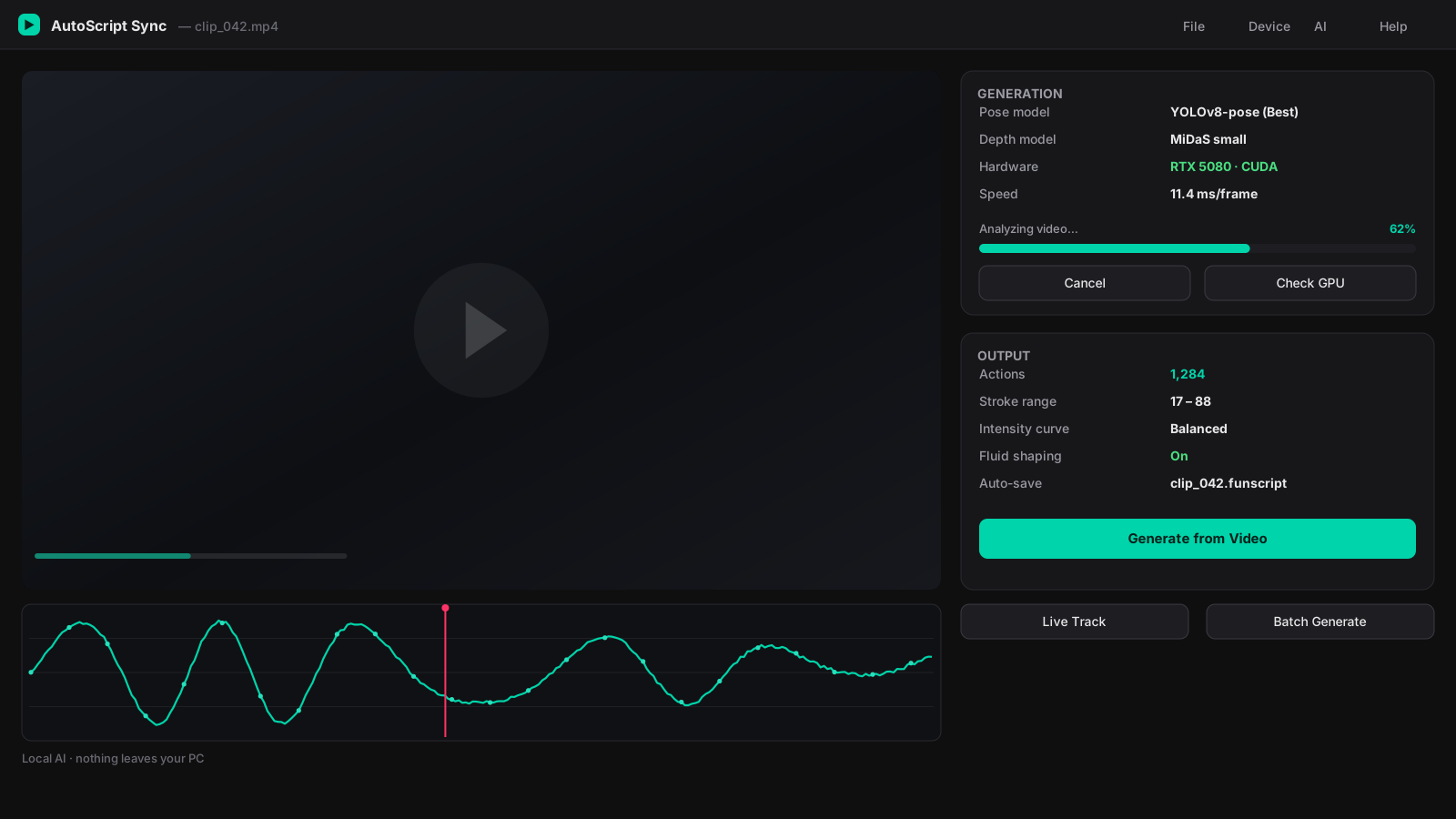
Generate a script from any video
Point AutoScript Sync at a video and local AI models (YOLOv8 pose + MiDaS depth) build a full funscript — no cloud, no uploads; the AI models run on your GPU.
- Local AI: the video never leaves your PC
- GPU-accelerated on NVIDIA cards, with a CPU fallback
- Depth model adds true POV in/out motion
- Auto-saves a matching .funscript next to the video
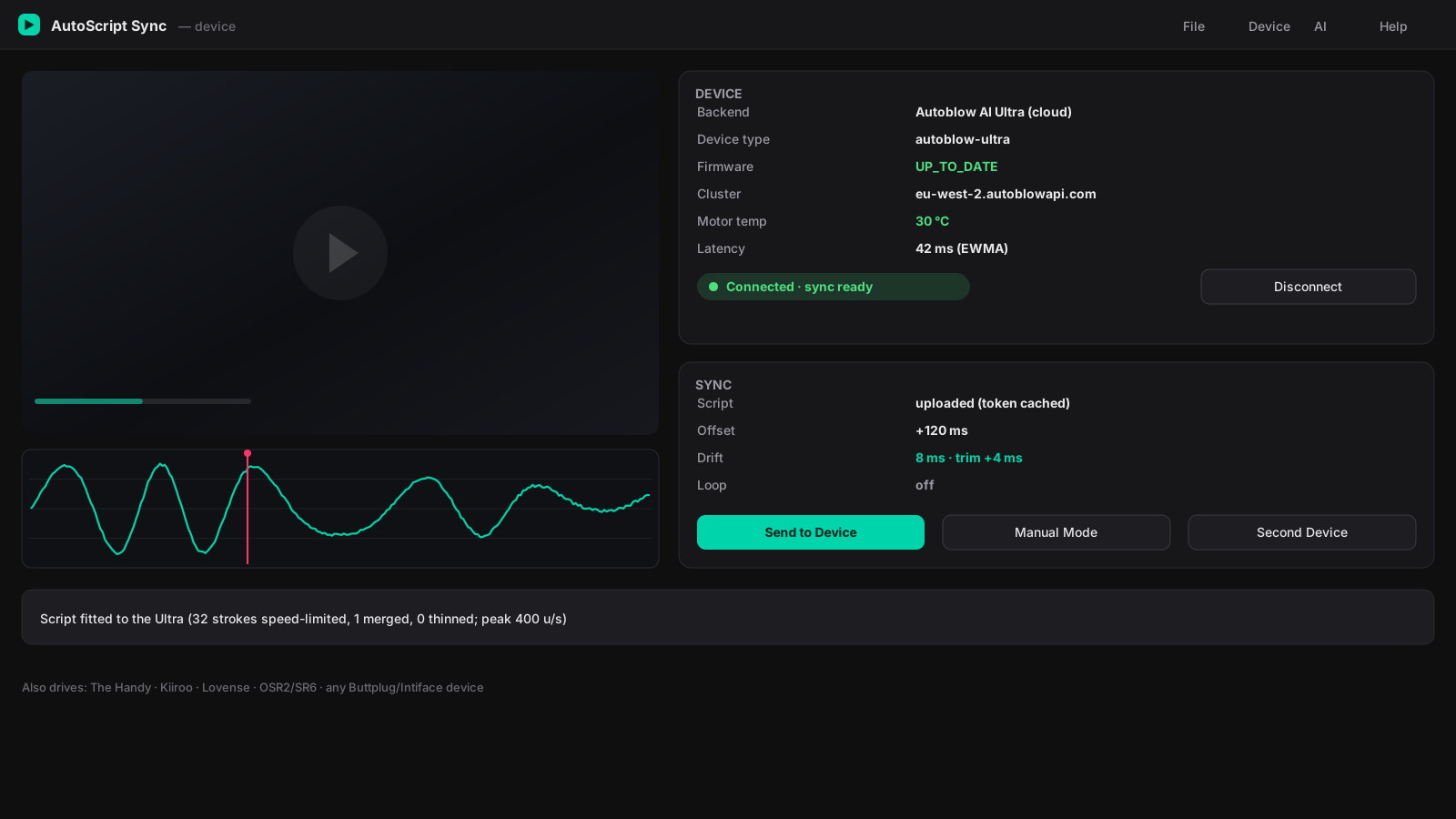
Drive your device in real time
Play the video and the app streams motion to your device in fluid sync — the Autoblow AI Ultra over its cloud API, plus strokers, vibrators and other devices through Intiface.
- Autoblow Ultra: upload-once, drift-corrected sync
- Intiface for strokers, vibrators, rotating toys and machines
- Autoblow: latency-compensated start and two-tier drift trim
- A second device follows the video too
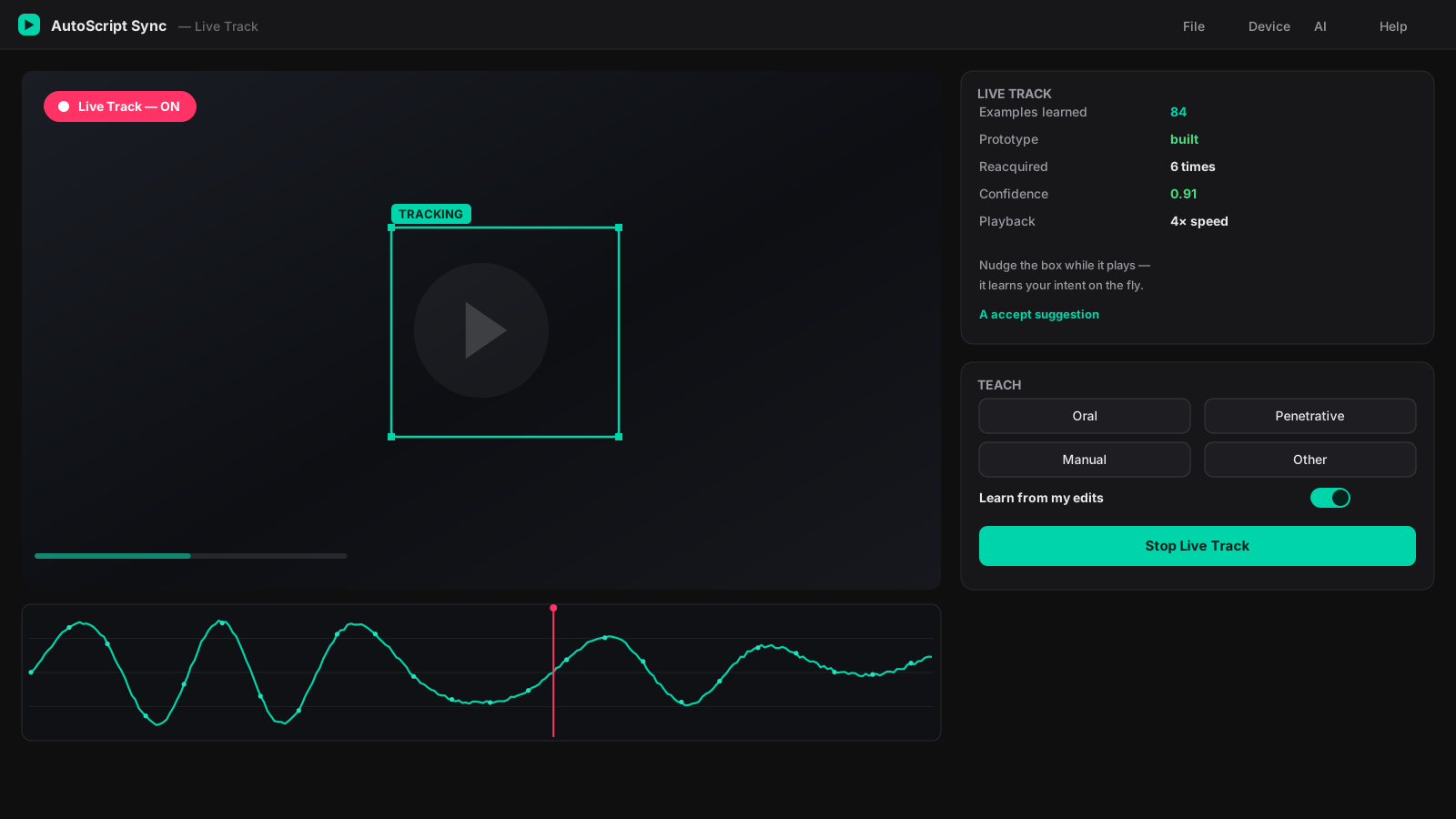
Teach it live with Live Track
Nudge the tracker while a video plays and it learns your intent on the fly — reacquiring the action when the shot changes, without you scripting a thing.
- Teach at playback speed, no frame-by-frame
- Builds a prototype from your corrections
- Reacquires after cuts and occlusion
- Great for tricky angles the AI misreads
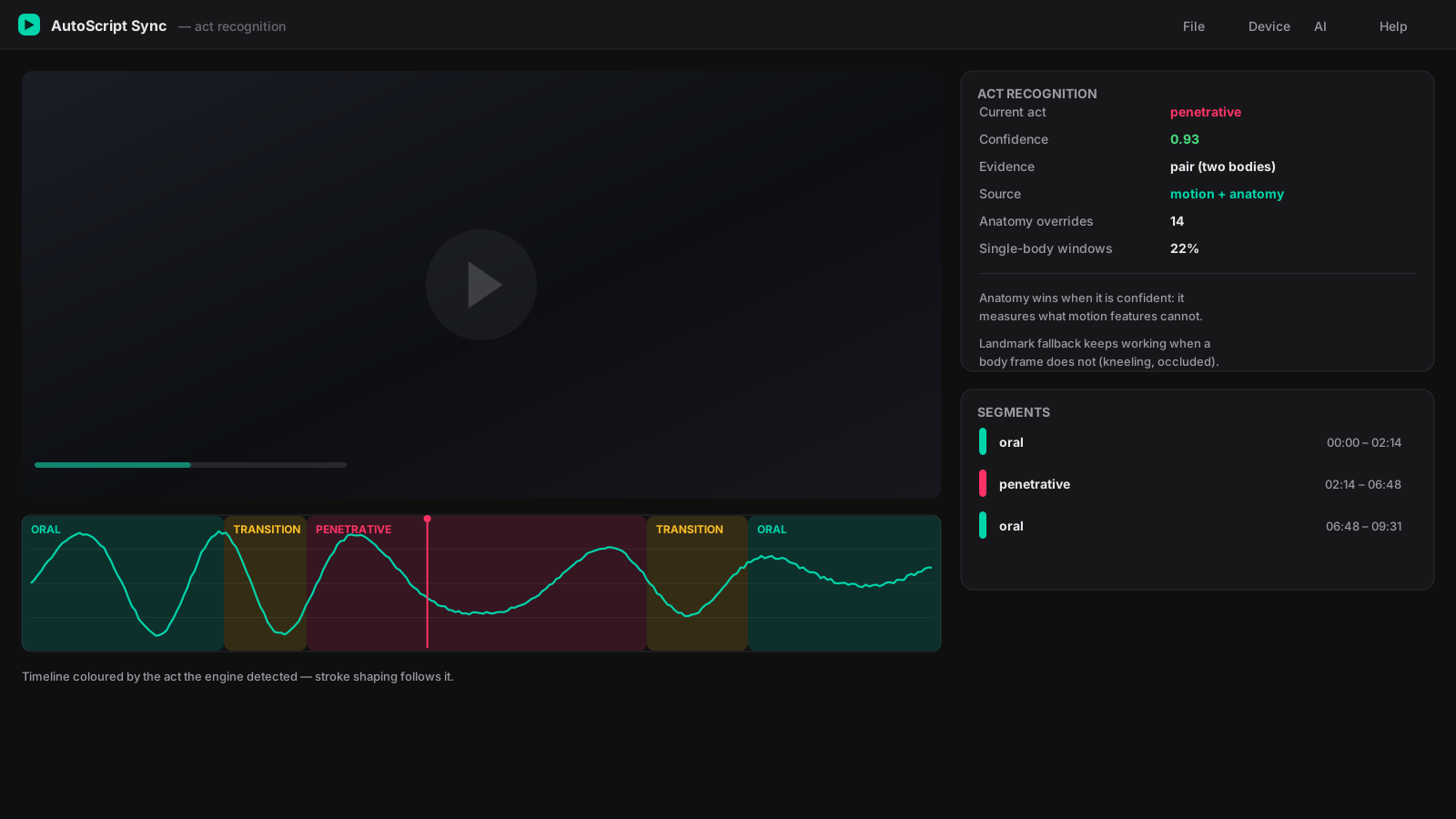
Anatomy-aware act recognition
The engine labels the kind of motion in each two-second window and shapes the stroke to match. It still needs your help: correct a label and your label always wins.
- Labels every window's motion type; your labels win
- Landmark fallback for occluded / kneeling shots
- Overrides the raw motion when anatomy disagrees
- Corrections teach the next generation
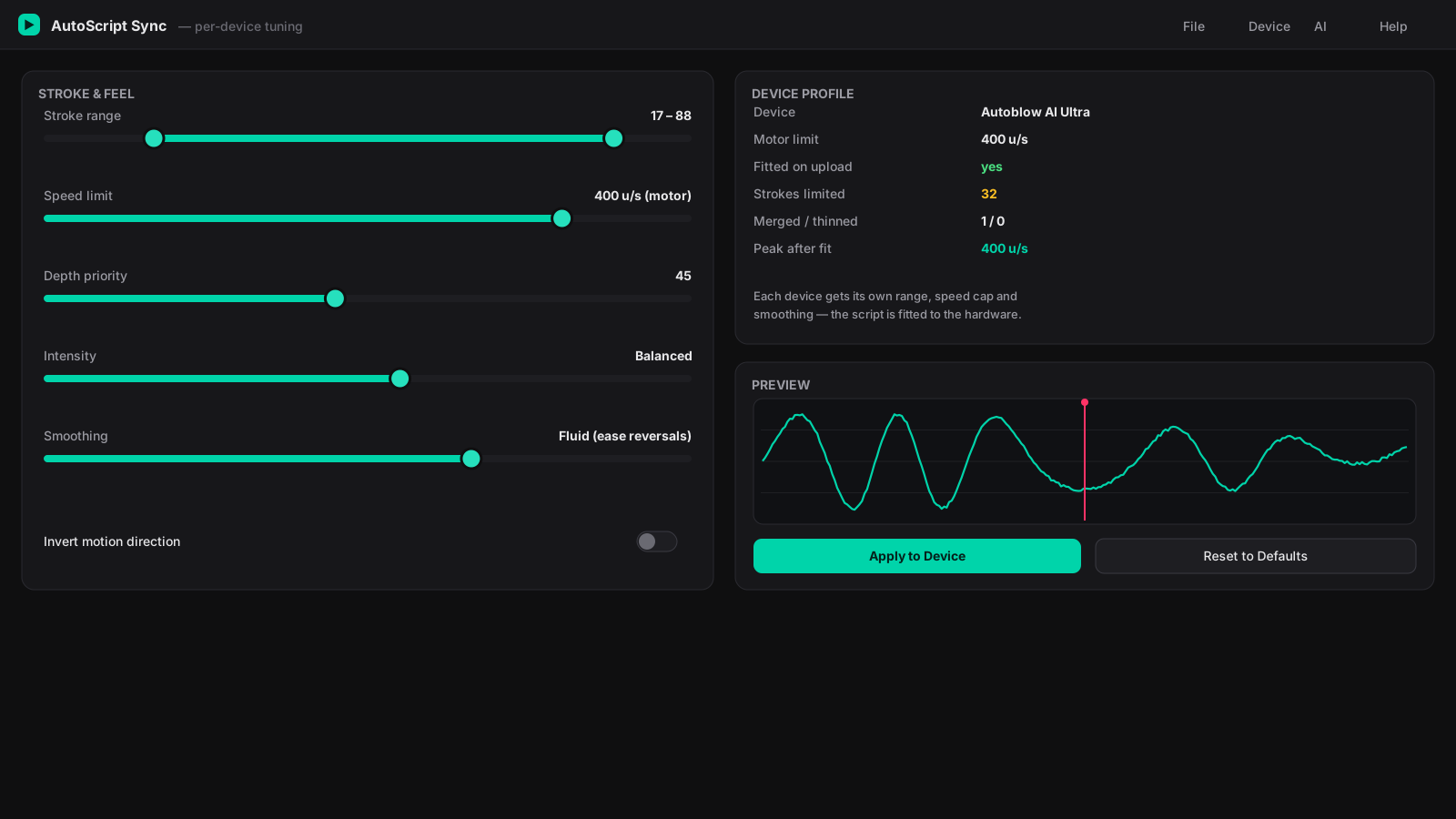
Tune the feel per device
Every device gets its own stroke range, speed limit and smoothing, and the script sent to the Autoblow is fitted to it on upload, so it never asks for more than the motor can give. What an Intiface device plays is fitted the same way.
- Per-device stroke range + speed limits
- Preset-smooth, velocity-continuous motion
- Script fitted to the Autoblow on upload
- Manual mode + oscillate for direct control
See exactly what it did
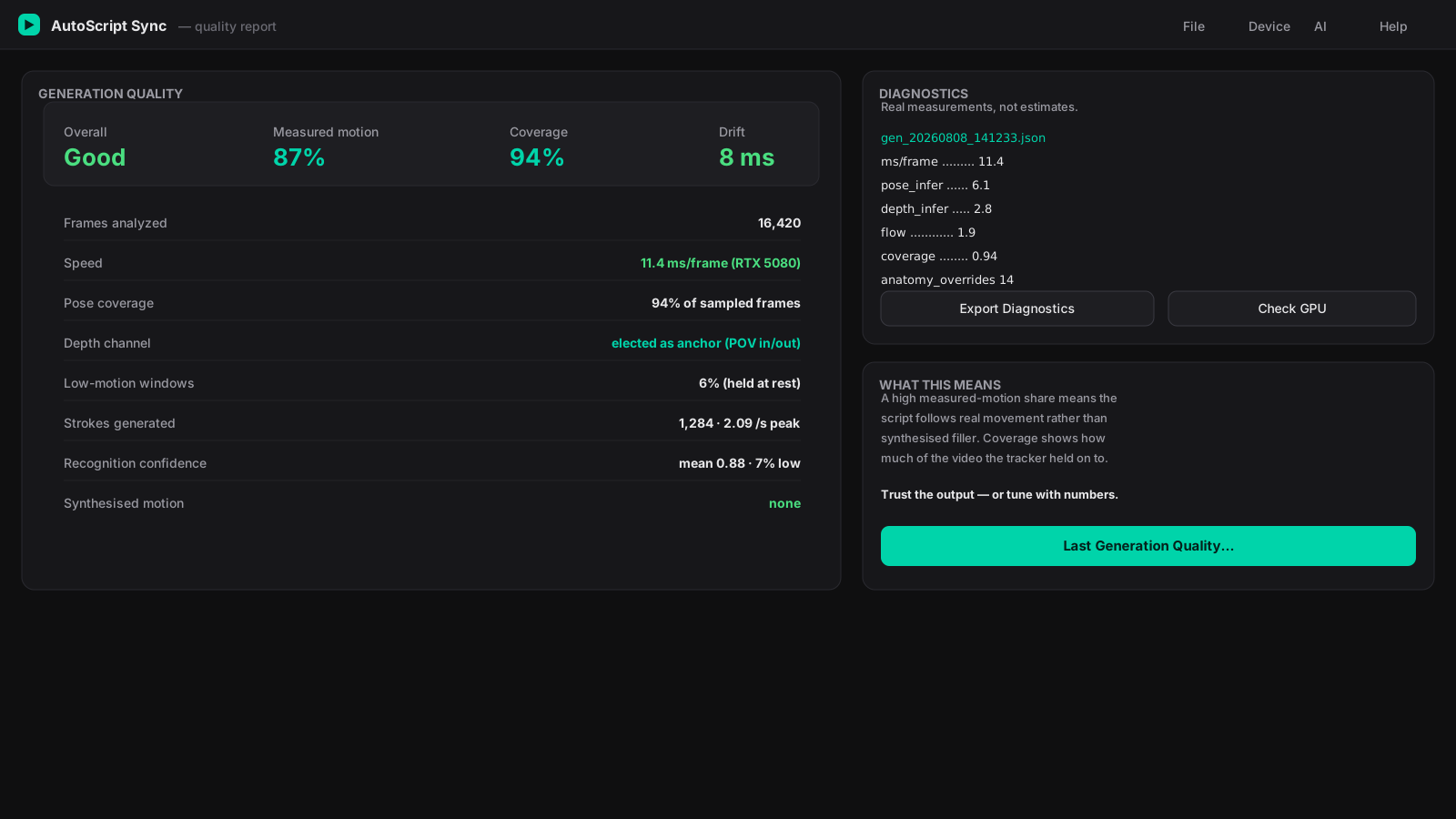
A quality report and real diagnostics (ms/frame, coverage, drift) show what the run produced — so you can trust the output and tune with real numbers, not guesswork.
- Quality report per generated script
- Real GPU timing (ms/frame), not estimates
- Coverage + drift diagnostics
- Check GPU confirms the card is doing the work
Open Report Studio — explore any report or script in your browser →
Devices it drives
Built around the Autoblow AI Ultra — its script is uploaded to the device and played back on the device itself, with latency compensation and drift correction against the video clock, and stroke reversals placed on the 16 fps grid that Autoblow's published motion analysis uses. That is the device this app is tuned for. How the Autoblow AI Ultra setup and sync work.
Everything else connects through Intiface — over Bluetooth, the Lovense USB dongle, or USB for OSR2/SR6 — and is driven live on your PC, where the app starts its own device server. Each stroker has a profile built from its maker's published limits, less about 10% — stroke speed and command interval. Only the Autoblow has been tested on real hardware by us so far:
- Autoblow AI Ultra — cloud playback, ~400 units/s, 60 ms commands (the speciality)
- The Handy — ~490 units/s, 55 ms
- The Handy 2 Pro — ~575 units/s, 50 ms
- Kiiroo Keon / Onyx — ~345 units/s, 70 ms
- Lovense Solace / Solace Pro — ~450 units/s, 60 ms
- OSR2 / SR6 — ~500 units/s, 50 ms (build-dependent)
- Any other Buttplug-compatible stroker — falls back to conservative generic limits
Devices that don't stroke follow the script too:
- Vibrators — Lovense, We-Vibe, Satisfyer, LELO, Svakom, Magic Motion and more. Strength follows how fast the script is moving and stops when the video pauses; toys with two motors run both
- Rotating toys such as the Vorze range — speed follows the script, and the direction reverses with each stroke
- Oscillating machines such as Hismith — speed follows the script
- Air-pump toys such as the Lovense Max — follow the pace of the scene, adjusted at most once a second because a pump needs time
- Several at once — every device on the connection plays together, and a second device can follow the video beside the Autoblow
Pick your exact model in the app and it loads that device's real capabilities before you connect.
How it works
The whole flow, start to finish.
Connect your device
Paste your Autoblow token (or pick Intiface for other devices) and hit Connect. Test Stroke confirms control.
Open a video
File → Open Video. If a matching .funscript sits next to
it, that loads automatically.
Generate the script
Click Generate from Video. Local AI analyses the motion on your GPU with a live progress bar and time estimate.
Send to device
Send Script to Device fits it to your hardware — range, intensity and fluid easing baked in — and uploads.
Press play
The device tracks the video in real time. Pause, seek and scrub freely — it follows instantly.
Fine-tune the feel
Adjust Offset if it's early or late, and Depth emphasis for deeper strokes. Re-send after any change.
Model guide
Click Download best and the app recommends the right tier for your hardware. Here's the full picture.
Pose models (body tracking)
| Tier | Model | Best for | Size |
|---|---|---|---|
| Fast | yolov8n-pose | Weak CPUs, quick tests | ~13 MB |
| Balanced ★ | yolov8s-pose | The sweet spot — recommended for almost everyone | ~45 MB |
| Accurate | yolov8m-pose | Noticeably sharper; likes a GPU | ~99 MB |
| Best | yolov8l-pose | Max accuracy; GPU strongly advised | ~168 MB |
Depth models (POV in/out)
| Tier | Model | Best for | Size |
|---|---|---|---|
| Fast ★ | MiDaS-small | Recommended — fast and reliable POV depth | ~64 MB |
| Best | MiDaS-large | Sharper depth, but slow to start — only with a strong GPU | ~400 MB |
Full guide
A reference for everything in the app — also built into the app's Help panel (Help → Show Help Panel).
Device panel
Device type — Autoblow AI Ultra (cloud, plays a device-fitted
script for the smoothest motion) or Intiface/Buttplug (local, real-time;
the device server starts by itself and drives every device it finds).
OSR2/SR6 USB port — only for a TCode device plugged in by USB:
pick its COM port before connecting.
Connect / Test Connection / Test Stroke — pair, verify the link,
and run one gentle stroke so you know control works before playing.
VR headset — enter your Quest's IP with DeoVR Remote Control
enabled; the video streams to the headset and stays in sync.
Stroke Settings
Stroke range — the physical window the device moves in; narrow it
for gentler sessions, the rhythm is preserved.
Intensity — scales stroke depth around the midpoint.
Fluid motion (ease reversals) — the smoothness switch. Converts
hard direction changes into eased S-curves like the device's presets.
Leave it on; re-send after changing.
Depth emphasis — makes deep strokes travel proportionally further
(non-POV "goes deep" feel). 100% is neutral.
Invert motion direction — flips up/down if the feel is reversed
for your mounting.
Manual mode — a device-side oscillator between your range points
at the set speed; no video needed.
Funscript panel
Generate from Video — full local AI analysis into a script; the
progress bar shows percent and time remaining.
Generate + Play (instant) — analyses the first stretch so you can
start immediately; the full script replaces it when ready.
Set Motion Region — draw a box to pin tracking where you want it
when auto-detection grabs the wrong thing.
Send Script to Device — fits the script to the device and uploads;
identical re-sends skip the upload (cached 48h).
Accuracy / Hardware / Curve — analysis density, GPU selection, and
motion curve (Smoothed is the most natural).
Pose / Depth model + Download best — optional AI models; Download
best fetches, verifies and applies one automatically.
Check GPU — reports whether analysis is really using your card,
with exact fix commands if not.
Teach at playhead / Review uncertain / Learn from my edits — train
the classifier on your library and let it learn your editing taste.
Timeline editor
Shift+drag selects a region, then Amplify, Soften, Shift timing, Smooth, Delete, Loop or Re-analyze that span. Ctrl+wheel zooms, Ctrl+S saves. Coloured bands show recognised acts; red ticks mark scene cuts. Offset shifts device timing — positive if it feels late, negative if early.
Hardware & compatibility
The installer brings the whole AI runtime, so there is nothing to set up: NVIDIA cards (RTX 50-series included) run it through CUDA, and anything else runs on the CPU, more slowly. At launch the app checks for a new version and refreshes installed models. If "GPU (CUDA)" isn't working, Check GPU shows exactly why and how to fix it.
What buyers say
Every review is written with a real licence key, so it comes from someone who bought AutoScript Sync. Genuine reviews are published whether they're good or bad.
No reviews have been published yet. Bought it? Be the first to review it.
FAQ
Which devices does it work with?
Two ways to connect: the Autoblow AI Ultra over its cloud API, or Intiface, driven live on your PC. Strokers (The Handy, Kiiroo, OSR2/SR6 and others) follow every stroke. Vibrators follow how fast the script is moving, rotating toys reverse with each stroke, oscillating and air-pump machines follow the pace, and several devices can play at once. Only the Autoblow has been tested on real hardware by us so far; the device compatibility table shows each one's status. Setup and sync for the Ultra are covered on the Autoblow AI Ultra page.
Is my video ever uploaded?
No. All AI analysis runs locally on your PC and no video, frame or file name is sent over the internet. The app does go online for other things: licence activation and checks, the update check at launch, model and device-engine downloads, and the Autoblow cloud if you use that device, which receives the generated script. The full list is on what stays on your PC.
Do I need a powerful GPU?
No — it runs on CPU too, just slower. A modern NVIDIA GPU speeds up analysis a great deal, and RTX 50-series cards work out of the box. The app tells you when it has fallen back to the CPU.
Why is generating a long video slow?
Analysis processes tens of thousands of frames, and Balanced reads the motion in every one. On our RTX 5080 test PC, films of 32 to 39 minutes took about 25 to 60 minutes at Balanced; 4K and 60 fps films take longest. If it's slow, lower the Accuracy setting and confirm the GPU is engaged with Check GPU.
The motion feels jagged — how do I fix it?
Make sure Fluid motion is ticked in Stroke Settings, then re-send the script. That converts every reversal into a smooth eased curve. A variable script won't feel identical to a fixed preset — that variation is the point.
Download AutoScript Sync
One Windows installer. Detects your hardware, sets up the AI runtime, and gets you generating in minutes.
Help make the tracking better
The most useful thing you can send us is work you did by hand: a hand-tracked funscript, a Live Track session where you corrected the tracking yourself, or your AI Bulk Learn labels. Those are the one thing we cannot generate ourselves — a hand-made script is the reference the generator is scored against, so every one we get makes the next improvement measurable instead of guesswork.
What to send
Any .funscript you tracked or corrected by hand, and
the .roitrack.json that Live Track writes beside the
video — that one is the most valuable file of the lot, because it
records the region you followed frame by frame, which is a direct
answer to "where should the tracker have been looking". Add the
matching gen_*.json from your diagnostics folder if
you have it, and your AI Bulk Learn labels from
review_queue.json in the same folder.
What is actually in them
Mostly numbers: timestamps, stroke positions and timing
measurements. No video and no audio. One exception:
review_queue.json holds a small 160 px thumbnail of
each clip you labelled and the videos' file paths, so leave it out if
you would rather not share those. Nothing is sent unless you email it.
What we do with it
Use it to test and improve the tracking, and nothing else. We do not publish it, sell it, or share it. Ask us to delete yours at any time and we will.
One thing worth knowing first
Both files record the filename of the video you
scripted, and a filename usually says what the scene was. If you
would rather not share that — most people would not — rename the
files before sending, or open the .json in Notepad and
replace the "video" value with anything you like. It
makes no difference to us: we only need the motion data, not the
title.
Sending is entirely voluntary, has no effect on your licence, and nothing is ever uploaded automatically. The app does not phone home with your data — if you want us to have something, you email it deliberately.
%USERPROFILE%\.autoscript_sync\logs
Our other app
We build small, focused Windows tools that each do one job properly.
RollMyLibrary · rollmylibrary.com
Stop scrolling. It organises your video collection and intelligently picks what to watch next — smart randomisation weighted by what you have actually watched, auto-tagging, Smart Views, hover previews, duplicate finding and a series organiser.
See it in action on RollMyLibrary →